The best World Cup upgrade for your iPhone costs nothing and takes two minutes: a countdown widget that always shows time remaining until your next saved match. No unlocking, no app-opening, no "wait, when is the game?" — the answer lives on your Home Screen.
During the knockout rounds happening right now, when every match is win-or-go-home, a glanceable countdown is the difference between catching the pre-match buildup and arriving at halftime.
What the widget shows
- Time to kickoff for your next saved match — days, hours, minutes, live.
- The fixture itself: teams, stage and your local kickoff time.
- Multiple sizes: compact Lock Screen widgets and richer Home Screen cards.
Adding widgets on iPhone (the general steps)
- 1Home Screen: long-press any empty area until apps jiggle, tap Edit/+, search for the app, choose a widget size and tap Add Widget.
- 2Lock Screen: long-press the Lock Screen, tap Customize → Lock Screen, select the widget area and add the countdown.
- 3Position it where your thumb rests — the point of a widget is zero-effort glancing.
Widget strategy for the tournament
Save every match of your team plus the knockouts you plan to watch, and let the widget surface whichever comes next. During group stage you will glance at it daily; during knockout week it becomes the most-checked pixel on your phone.

Setting up the countdown in Football Schedule Planner
- 1
Save at least one match
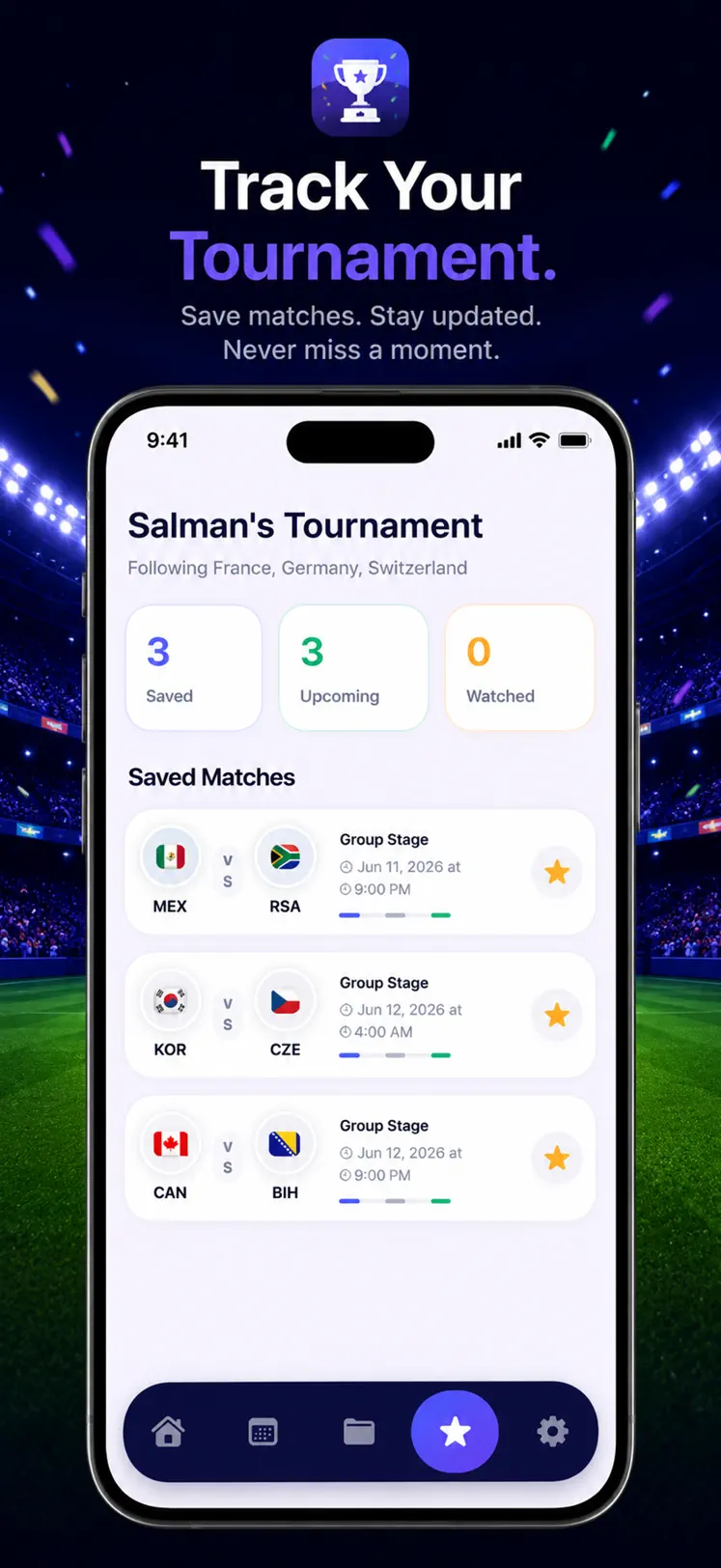
The widget counts down to your next saved fixture — pick your matches in the app first.
- 2
Add the Home Screen widget
Long-press your Home Screen, tap +, find Football Schedule Planner and add your preferred size.
- 3
Add the Lock Screen widget
Customize your Lock Screen and slot in the compact countdown for zero-unlock glancing.
- 4
Let it roll over
After each final whistle, the countdown automatically switches to your next saved kickoff.

Free to download on iPhone & iPad
Frequently asked questions
Do the widgets drain battery?
No — iOS widgets update on an efficient schedule managed by the system, not by running the app continuously.
Can I count down to a specific match only?
Save just that fixture and the widget dedicates itself to it — perfect for building anticipation for a final.